Cloud Backup for Small Businesses: The 3-2-1 Rule in Plain Language
Sync is not backup. How to protect laptops, servers and SaaS data like Google Workspace and Microsoft 365, what immutable backups are, and how to test that you can actually restore.
Key takeaways
- Sync services copy mistakes and ransomware instantly — they're not a backup on their own.
- Follow 3-2-1: three copies, two kinds of storage, one off-site — and keep one copy immutable or offline.
- Back up SaaS data (email, shared drives, CRM) separately; providers' recycle bins expire.
- Define how much data you can afford to lose and how fast you need it back, then test restores quarterly.
Most small businesses believe they're backed up because their files are "in the cloud." Often they're actually synced — which means that when a file is deleted, overwritten or encrypted by ransomware, that change is faithfully copied everywhere within seconds. A real backup is different: it keeps independent, versioned copies you can restore from after something goes wrong.
Sync vs. backup
| Sync (e.g. Dropbox, OneDrive, Google Drive) | Backup | |
|---|---|---|
| Purpose | Same files on every device, for collaboration | Recover data after loss or damage |
| Deleting a file | Deleted everywhere (recoverable only for a limited time) | Older copies retained per your policy |
| Ransomware | Encrypted files sync to the cloud | Clean earlier versions remain available |
| Retention | Limited version history, often 30–180 days depending on plan | You set retention (months or years) |
Sync tools are excellent and their version history helps, but they shouldn't be your only protection.
The 3-2-1 rule
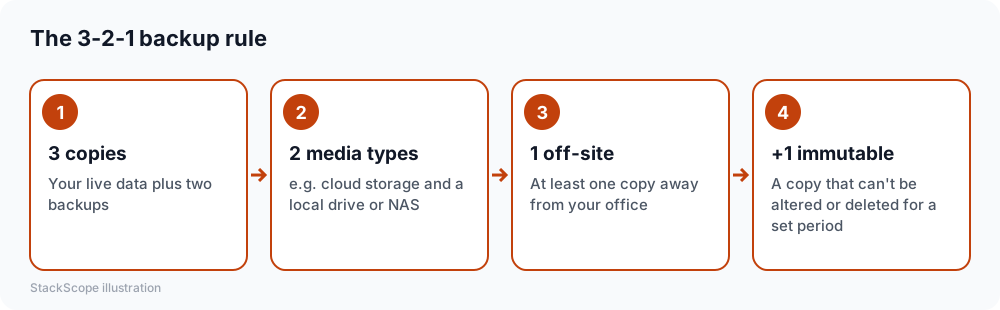
Ransomware gangs now routinely look for and delete backups they can reach. That's why modern guidance adds an immutable or air-gapped copy — one that, for a set period, cannot be modified or deleted, even by an administrator account that has been compromised. Many cloud backup services and storage providers offer immutability (sometimes called "object lock").
What needs backing up
- Laptops and desktops — especially files people keep locally rather than in shared drives.
- Servers and NAS devices in the office, if you have them.
- SaaS data — Google Workspace or Microsoft 365 email, calendars and shared drives; and don't forget your CRM, accounting and e-commerce platforms. Check what export or backup options each offers.
- Your website — files and database, if you host it yourself.
- Configuration and credentials — your password manager's emergency kit and recovery codes, stored securely.
Why SaaS needs its own backup
Cloud providers operate on a shared responsibility model: they keep their service running, but protecting your data from your own users' mistakes, malicious deletion or account compromise is largely your responsibility. Deleted items usually sit in a recycle bin for a limited period and then disappear. Third-party SaaS backup tools copy mailboxes and drives daily and let you restore individual items or entire accounts.
Set your recovery targets
Two simple questions define your backup design:
- How much work can we afford to lose? (Recovery point objective.) If the answer is "one day," daily backups are fine. If it's "one hour," you need more frequent backups for critical systems.
- How quickly do we need it back? (Recovery time objective.) Restoring terabytes from the cloud can take days over a normal connection; a local copy restores faster.
Most small businesses land on: daily cloud backup of everything, plus a local copy of critical data for fast restores.
Choosing a backup service
- Covers all your devices and SaaS apps (or you combine two services that do)
- Versioning with retention you control
- Immutable storage option
- Encryption in transit and at rest, with MFA on the backup console
- Central dashboard showing failed backups and alerts by email
- Simple restore of a single file, a folder or a whole device
- Clear pricing: per device, per user or per storage amount
Test your restores
A backup you've never restored from is a hope, not a plan. Once a quarter:
- Pick a random folder, mailbox or device.
- Restore it to a different location.
- Open a few files to confirm they're intact.
- Note how long it took and fix anything that surprised you.
Write the steps down so someone other than you can do it in an emergency.
Protect the backup itself
- Use separate credentials for the backup system, with MFA.
- Limit who can delete backups or change retention.
- Enable alerts for failed jobs and for large deletions.
- Keep an offline copy of the information needed to access backups if your main email is compromised.
Common mistakes
- Relying only on sync.
- Backing up to a drive that's always connected — ransomware encrypts it too.
- Never checking backup reports, discovering months of failed jobs after an incident.
- Forgetting SaaS apps, where much of a modern business's data actually lives.
Worked example: an architecture studio
Imagine a hypothetical eight-person studio with large project files on a network storage device in the office, plus Google Workspace for email and some shared documents.
Targets. They decide they can lose at most one day of work and need active projects back within a working day.
Design. The office storage device takes hourly snapshots and backs up nightly to a cloud storage provider with object lock (immutability) set to 30 days. A SaaS backup service copies Gmail and shared drives daily. Laptops back up continuously to the cloud for files people keep locally.
Protection. The backup console uses separate admin credentials with a hardware security key; deletion of backups requires a second person.
Testing. Each quarter, someone restores a random project folder and a random mailbox. The first test reveals that one large folder had been excluded by mistake — fixed long before it mattered.
Frequently asked questions
How much does backup cost? For a small business, typically a modest monthly fee per device or user, plus storage. It's almost always cheaper than a single day of lost work or a ransom demand.
Is an external hard drive enough? It's a useful second copy, but only if it's disconnected between backups and you also have an off-site copy.
How long should we keep backups? Many businesses keep daily versions for 30–90 days and monthly versions for a year or more. Some records have legal retention requirements — ask your accountant or advisor.
The bottom line
Don't confuse sync with backup. Follow 3-2-1 with one immutable copy, include your SaaS data, set clear recovery targets and test restores every quarter.