Google Workspace vs. Microsoft 365 for Small Businesses: How to Decide
Email, documents, file storage and AI features in one subscription. How to choose between the two big productivity suites, organize shared files, and avoid common sharing mistakes.

Key takeaways
- Choose based on how your team works with documents: browser-first collaboration or heavy desktop Office use.
- Use shared drives (Google) or SharePoint/Teams sites (Microsoft) for company files — not personal drives.
- Review external sharing settings: 'anyone with the link' is the most common data leak.
- Both suites offer AI assistants; compare them on your own documents before paying for add-ons.
For most small businesses, the productivity suite is the foundation of everything else: business email, calendars, documents, spreadsheets, file storage, video calls and, increasingly, AI assistants. The two dominant choices are Google Workspace and Microsoft 365. Both are capable; the right one depends on how your team works.
What you get
| Google Workspace | Microsoft 365 (business plans) | |
|---|---|---|
| Email & calendar | Gmail, Google Calendar | Outlook, Exchange |
| Documents | Docs, Sheets, Slides (browser-first) | Word, Excel, PowerPoint (desktop + web, depending on plan) |
| File storage | Google Drive and shared drives | OneDrive and SharePoint |
| Chat & meetings | Google Chat, Google Meet | Microsoft Teams |
| AI assistant | Gemini features (included or by plan) | Copilot features (included or add-on, by plan) |
| Device management & security | Varies by tier | Varies by tier; strong options in Business Premium |
Plans, prices and included AI features change frequently — check each vendor's current plan comparison before deciding.
How to decide
Choose Google Workspace if: - Your team collaborates in real time on documents most of the day. - People work mostly in a browser, on mixed devices including Chromebooks. - You value simplicity in administration.
Choose Microsoft 365 if: - You rely on advanced Excel (complex models, macros, Power Query) or exchange many Office files with clients. - You want desktop Office apps included. - You need stronger built-in device management and security controls on higher tiers.
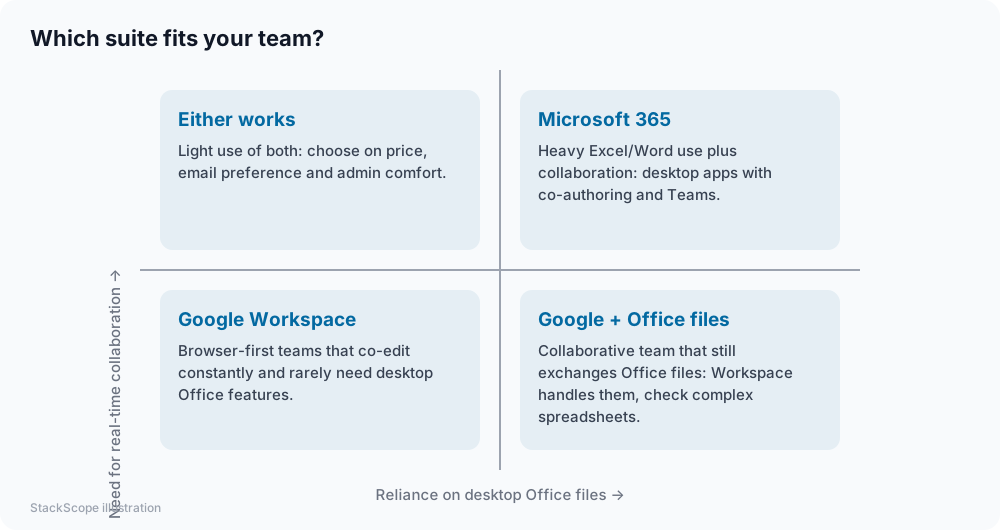
If you're still unsure, run a two-week trial with your most demanding users — usually whoever handles finance spreadsheets and client documents.
Organize files so they survive staff changes
The most common file mistake in small businesses is storing company files in personal drives. When someone leaves, files are orphaned or deleted with the account.
- Google: use shared drives owned by the organization, organized by team or function.
- Microsoft: use SharePoint sites (often created through Teams) for team files; OneDrive is for personal work in progress.
A simple structure works well:
- One shared space per team (Sales, Operations, Finance, Marketing).
- One per major client or project, if relevant.
- A company-wide space for policies, templates and brand assets.
- Clear naming conventions:
2026-10 Client Name - Proposal v2.
Sharing safely
Default sharing settings deserve a careful look:
- Restrict "anyone with the link" sharing for sensitive folders, or disable it for the organization and allow exceptions.
- Review external sharing periodically; both suites offer reports.
- Use expiry dates on links shared with external parties where available.
- Turn on MFA for every account.
- Keep an admin backup account with strong protection, in case the primary admin is locked out.
Migration tips
Switching suites, or moving from personal accounts to a business suite, is very doable:
- Email: both vendors offer migration tools for mailboxes, calendars and contacts.
- Files: move into the new shared structure rather than copying personal folders as-is.
- DNS: plan the MX record change for a quiet time, and set up SPF, DKIM and DMARC.
- Training: a one-hour session on where files live and how to share them prevents months of confusion.
AI features
Both suites now include AI assistants that draft emails, summarize documents and meetings, and analyze spreadsheets. Availability depends on your plan. Evaluate them the way you'd evaluate any AI tool — on your own documents — before paying for upgrades. Our AI writing assistant guide explains how.
Backups
Neither suite is a full backup solution on its own. Deleted items are recoverable only for a limited time, and a compromised account can delete or encrypt synced files. See our cloud backup guide.
Worked example: a property management company
Imagine a hypothetical company with eleven staff using free personal email accounts and a mix of USB drives and personal cloud folders.
Choice. Most work is in shared documents and simple spreadsheets, and staff use a mix of laptops and phones, so they choose a browser-first suite. The finance manager gets a desktop spreadsheet license for complex models.
Migration. Business email moves to the company domain over a weekend. Files are reorganized into shared drives: one per team, one per managed building, and one for templates and policies.
Sharing rules. "Anyone with the link" sharing is turned off by default; owners and contractors receive access to specific building folders with expiry dates.
Result. When an employee leaves, their files stay in shared drives, and the company can finally see — and control — what's been shared outside the business.
Frequently asked questions
Can we mix the two? Yes — some businesses use Google for email and documents but buy Microsoft Office desktop licenses for a few finance users. Just avoid storing company files in two places without clear rules.
Do we need business plans? Can't we use free accounts? Business plans give you a professional email address on your domain, admin control, account recovery, shared storage owned by the company, and contractual data protections. Free personal accounts give you none of that.
Which is cheaper? Entry-level plans are broadly comparable. The real cost difference comes from which tier you need for security, storage and AI features.
The bottom line
Pick the suite that matches how your team handles documents, store company files in organization-owned shared spaces, lock down external sharing, and add backups. Either suite will serve a small business well when it's set up deliberately.