Video Conferencing for Small Businesses: Choosing a Platform and Fixing Bad Calls
Zoom, Google Meet or Microsoft Teams? How to choose, what really improves call quality (hint: audio and lighting), and how to run client calls and webinars that look professional.

Key takeaways
- Use the video tool included in your productivity suite unless you need specific webinar or external features.
- Audio matters more than video: a decent headset or USB microphone fixes most complaints.
- Wired internet or a strong Wi-Fi signal beats any software setting.
- Set default security: waiting rooms or lobbies for external meetings, host controls for screen sharing.
Video calls are now part of everyday business: sales demos, client check-ins, interviews, training and team meetings. The platform choice is easier than it seems, and the biggest improvements to call quality usually come from a microphone and a network cable rather than from software.
Choosing a platform
| Platform | Best fit | Notes |
|---|---|---|
| Google Meet | Businesses on Google Workspace | Runs in the browser; simple for guests |
| Microsoft Teams | Businesses on Microsoft 365 | Integrated with chat, files and calendars |
| Zoom | Businesses meeting many external parties; webinars and events | Familiar to most guests; strong webinar products |
| Webex, GoTo Meeting, others | Specific industry or legacy needs | Check guest experience and integrations |
Start with what's included in your productivity suite. It's already paid for, integrates with your calendar and is managed by the same admin console. Add a separate platform if you run webinars, need features like large-audience events or registration, or your clients strongly prefer another tool.
Features worth checking
- Meeting length and participant limits on your plan
- Recording, transcription and AI summaries — and where they're stored
- Waiting rooms or lobbies for external guests
- Breakout rooms for training and workshops
- Webinar mode with registration, if you run events
- Phone dial-in for participants with poor connections
- Calendar integration and scheduling links
- Admin controls for recording, external access and data retention
Fixing bad calls
Most call-quality complaints come down to three things: audio, connection and lighting.
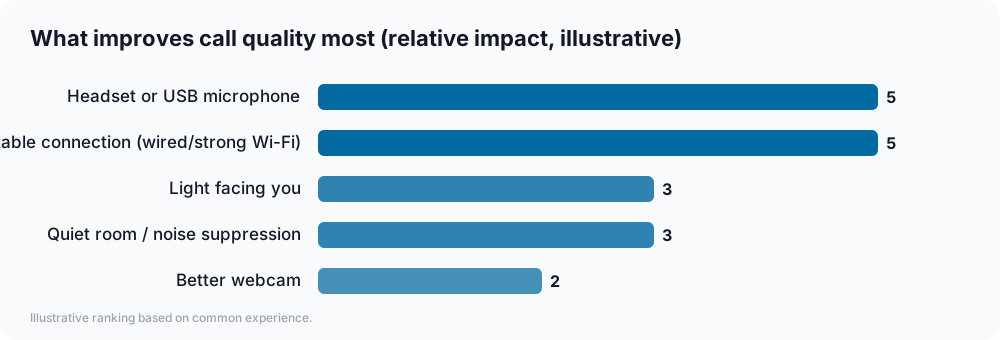
Audio first. Laptop microphones pick up keyboards, echoes and room noise. A wired headset or a USB microphone is inexpensive and makes you instantly easier to understand. Turn on noise suppression in the app.
Connection second. Use a wired Ethernet connection for important calls if you can. On Wi-Fi, sit near the router, avoid heavy uploads during calls, and ask others on the network not to stream video at the same time. Closing other apps and browser tabs also helps.
Lighting third. Face a window or a soft light; avoid a bright window behind you. Position the camera at eye level.
A better webcam is fourth. Built-in laptop cameras are fine for most internal calls. External webcams help for sales and client-facing roles.
Running professional client calls
- Send an agenda with the invite and the expected length.
- Join two minutes early to test audio and screen sharing.
- Share only the window you need rather than your whole screen, and silence notifications.
- Summarize decisions and next steps at the end, then follow up in writing.
- Ask before recording, and explain how the recording will be used.
Security basics
- Use unique meeting links or passcodes for external meetings.
- Enable waiting rooms or lobbies for meetings with guests.
- Limit screen sharing to hosts by default for large meetings and webinars.
- Keep apps updated — video apps are frequently patched.
- Control recording permissions and retention in the admin console.
Webinars and events
If you run webinars for marketing or training:
- Use a platform with registration, reminders and replay links.
- Run a technical rehearsal with all speakers.
- Assign a moderator to handle chat and questions.
- Repurpose recordings into short clips and articles.
Cost
Video features are included in Google Workspace and Microsoft 365 business plans. Standalone platforms offer free tiers with time or participant limits and paid plans per host. Webinar products are typically priced by audience size.
Worked example: an online tutoring business
Consider a hypothetical tutoring company with twelve tutors teaching one-to-one and small-group sessions online, and frequent complaints about audio.
Platform. They keep the video platform included in their productivity suite for internal meetings and choose one standard platform for lessons, with waiting rooms enabled and unique links per student.
Equipment. Every tutor receives a wired headset and guidance on lighting; tutors on unreliable Wi-Fi are encouraged to use an Ethernet adapter.
Practice. Tutors join three minutes early, share a single window instead of the whole screen, and send a short written summary after each session.
Result. Audio complaints virtually disappear, lessons start on time, and parents appreciate the follow-up notes — all for the cost of a headset per tutor.
Frequently asked questions
Do we need more than one video platform? Usually not. Keep one as your default and join others when clients invite you; most work from the browser without an install.
Are AI meeting summaries worth it? They save time for routine meetings. See our guide to AI meeting notetakers for consent and settings to check.
What's the minimum internet speed for video calls? Requirements vary by platform and quality, but stable upload speed matters as much as download speed. Check your platform's published requirements and test at the times you usually meet.
The bottom line
Use the platform that comes with your productivity suite unless you need specific external or webinar features, invest in audio and a stable connection first, set sensible security defaults, and run client calls with an agenda and a written follow-up.